
IC Project MCP server – manage projects through a simple conversation with AI

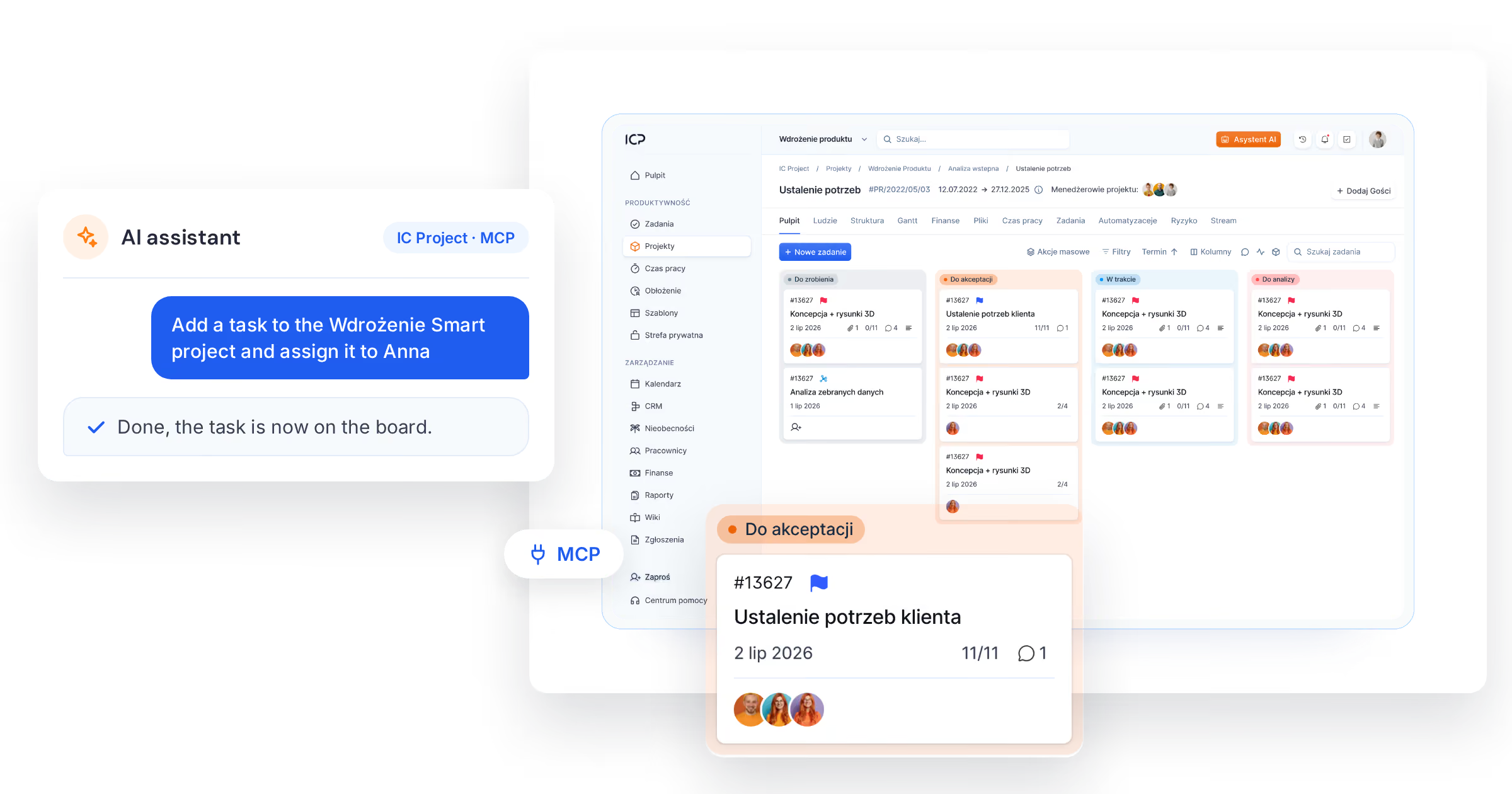
One connector between your AI and IC Project
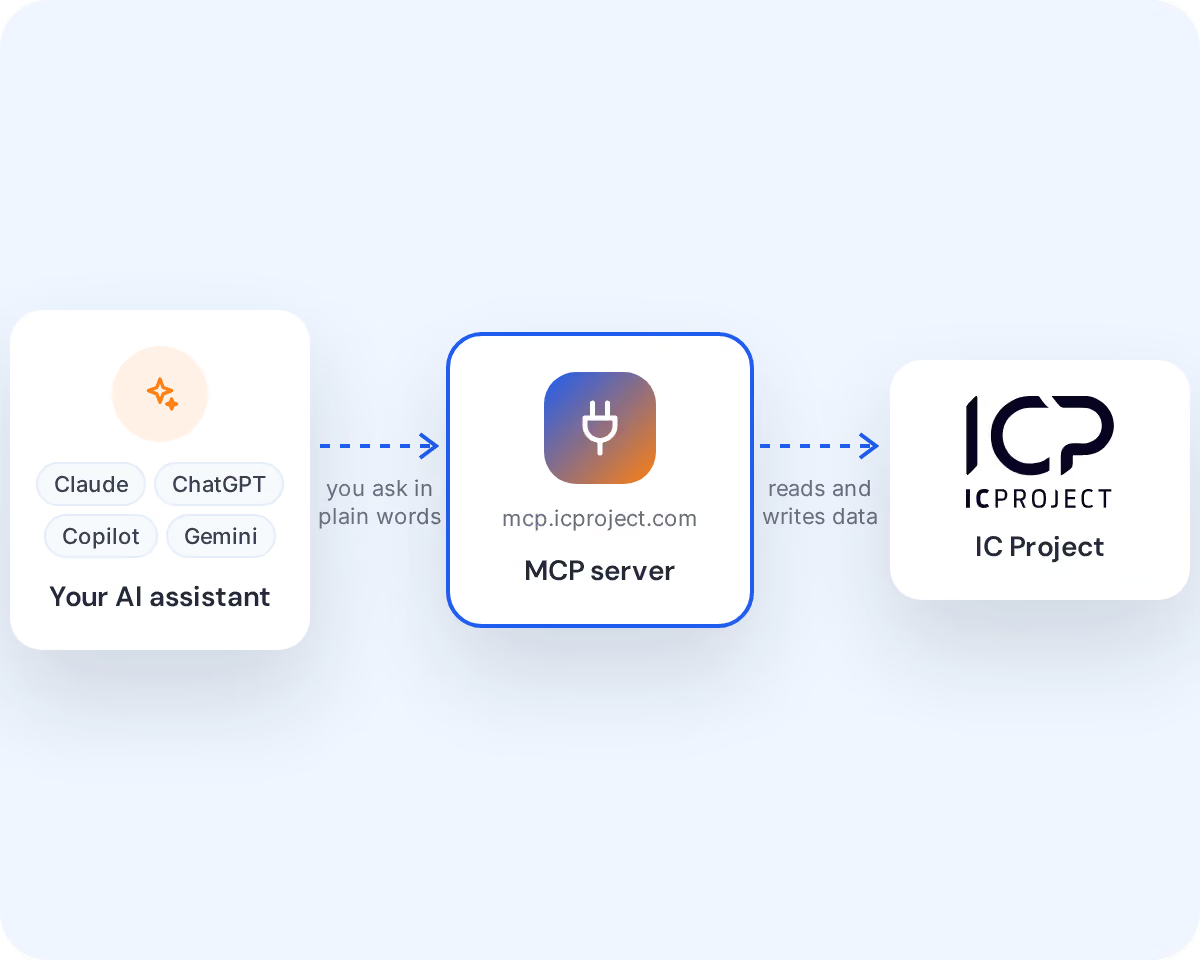
MCP (Model Context Protocol) is an open standard that lets AI assistants connect to other systems. Without it, a chat only knows what you paste into it. With the MCP server, your assistant reaches into projects, tasks and time tracking in IC Project on its own and can act on them.
You say what you need
In plain words, in the chat you already use
Your assistant handles the rest
It checks data in IC Project and gets the job done
AI that knows your projects inside out
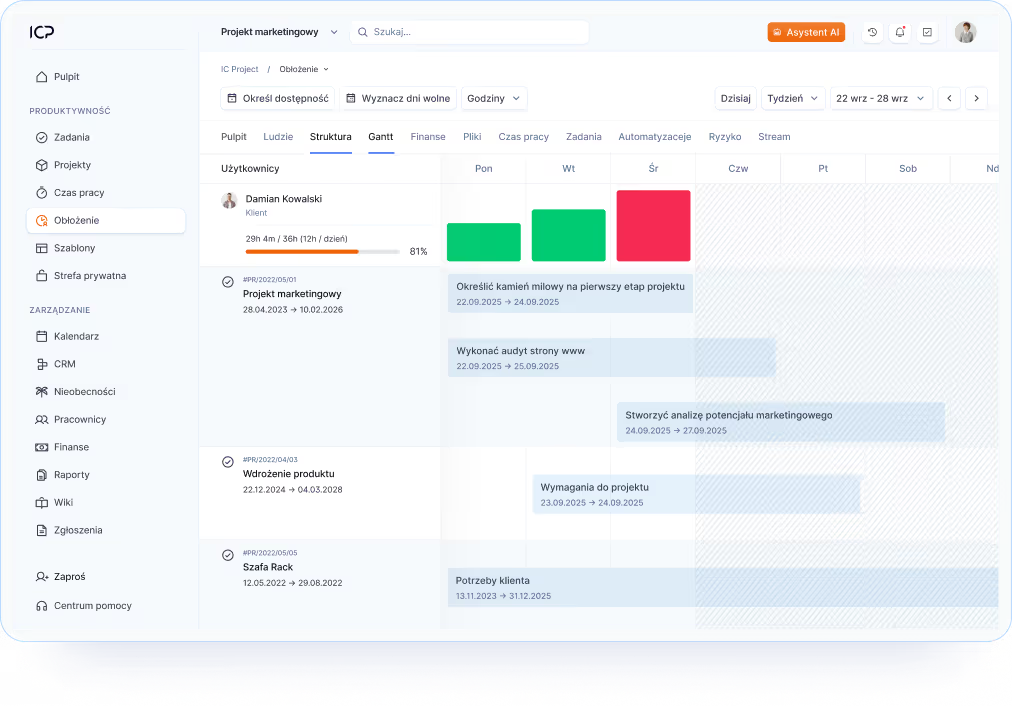
A regular chat can give you general project management tips. Connected to IC Project through the MCP server, it sees your stages, deadlines, people, time logs and budgets. So its answers are about your company, not a textbook example.
Answers based on your data
Deadlines, people and numbers straight from IC Project, no guessing
Analyses you never had time for
Budget, team time and progress pulled together in seconds
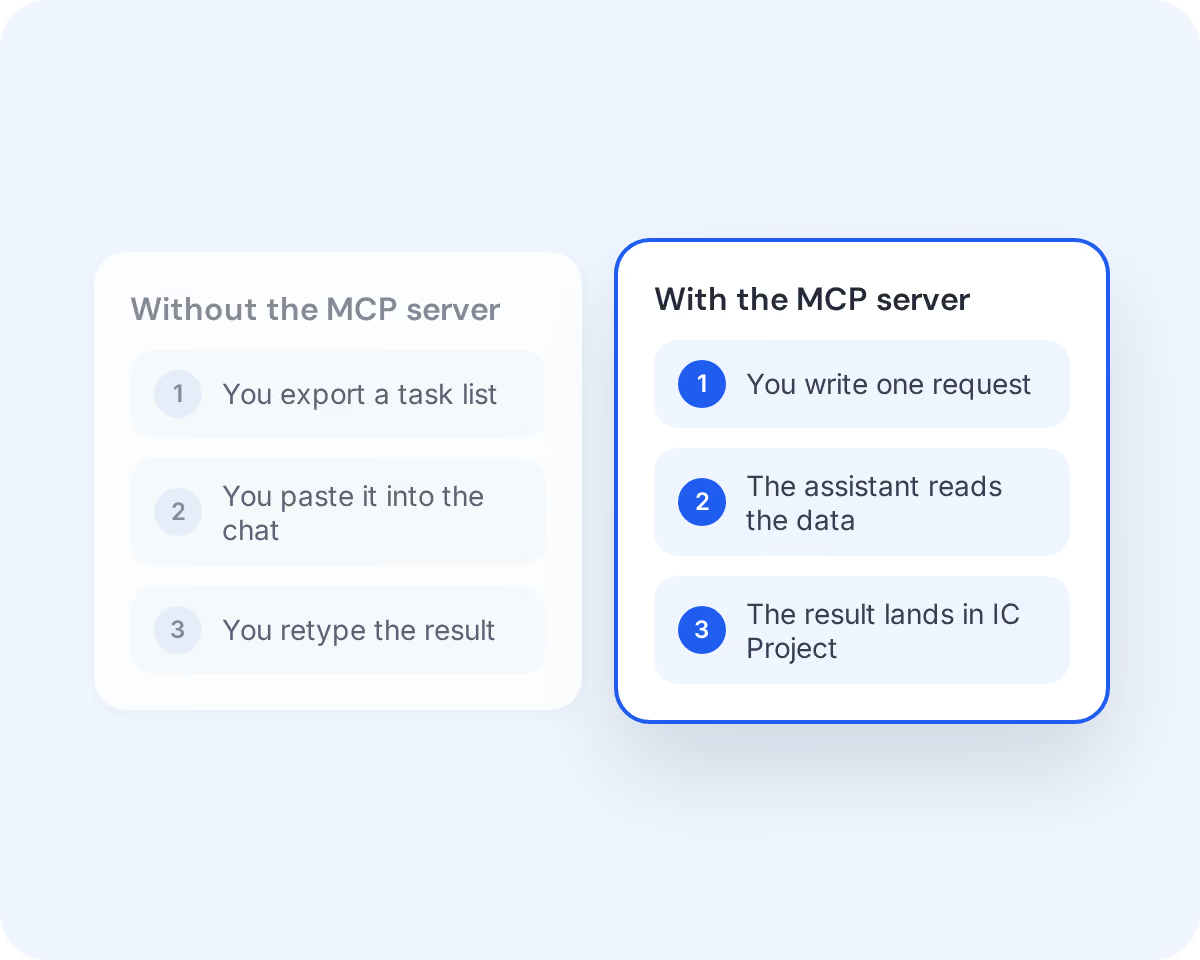
What your AI assistant can do in IC Project
Find a project and summarize its stages, create tasks with checklists and dependencies, assign people, log time, compare estimated and actual costs, and add calendar events. The full list of capabilities is in the MCP server documentation.
One sentence instead of a dozen clicks
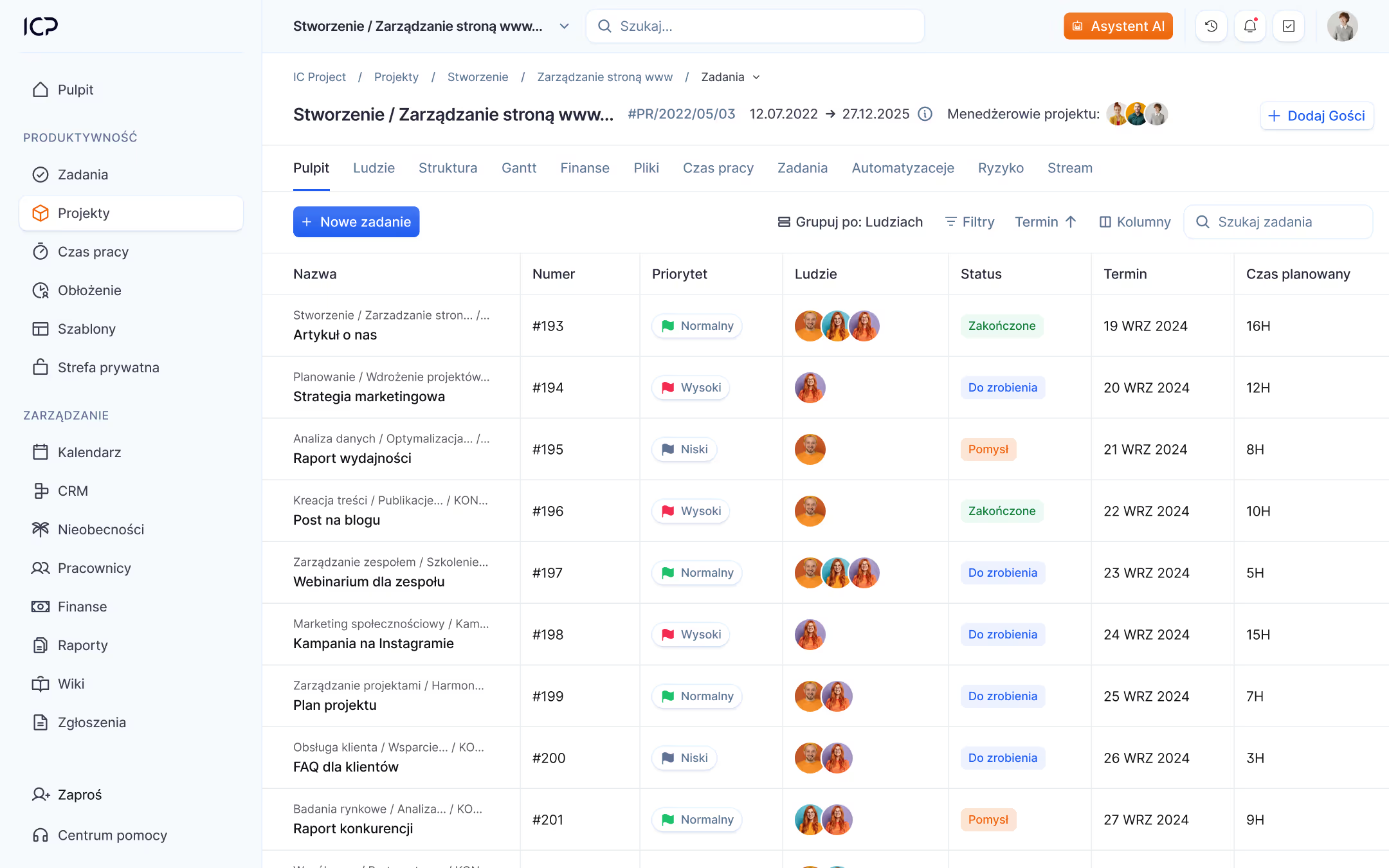
Project manager – quick overview and planning
“Show overdue tasks in the CRM Rollout project and tell me who to follow up with.”
“Break the campaign down into stages and tasks for the next 6 weeks.”
Management and controlling – numbers without building reports
“Compare estimated and actual costs for each stage of the Hall B project.”
“How many hours did the team log in October on the Hall B project?”
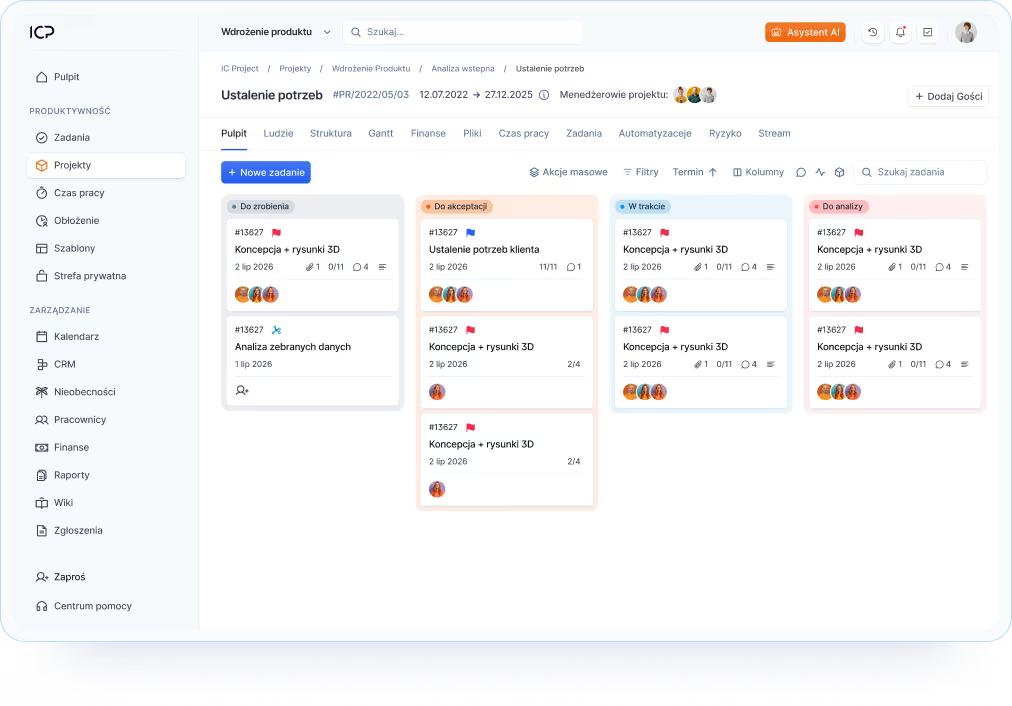
Team member – tasks and time in one sentence
“Show my tasks for this week.”
“Log 2 hours on the Facade design task for today.”
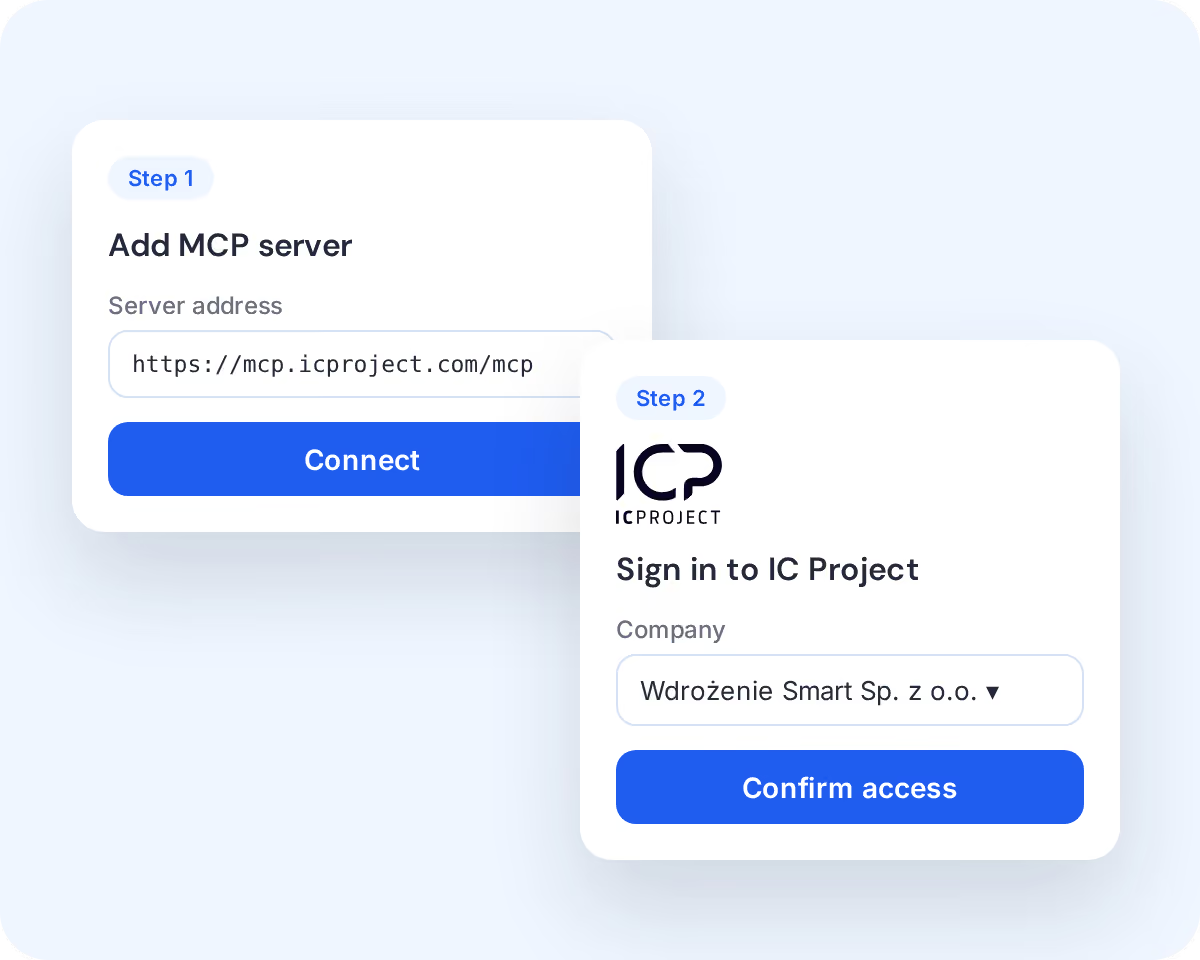
Connect in two steps
The MCP server works with AI assistants that let you add your own MCP servers, including Claude, ChatGPT, Microsoft Copilot, Gemini, Perplexity, Mistral Le Chat and Cursor. In some of them this option is only available on selected plans or requires administrator approval.
You’ll find instructions for each assistant in IC Project: Avatar → Integrations → MCP.
1. Add the server in your AI assistant
Paste the address: https://mcp.icproject.com/mcp
2. Sign in with your IC Project account
Choose your company, confirm access and start chatting
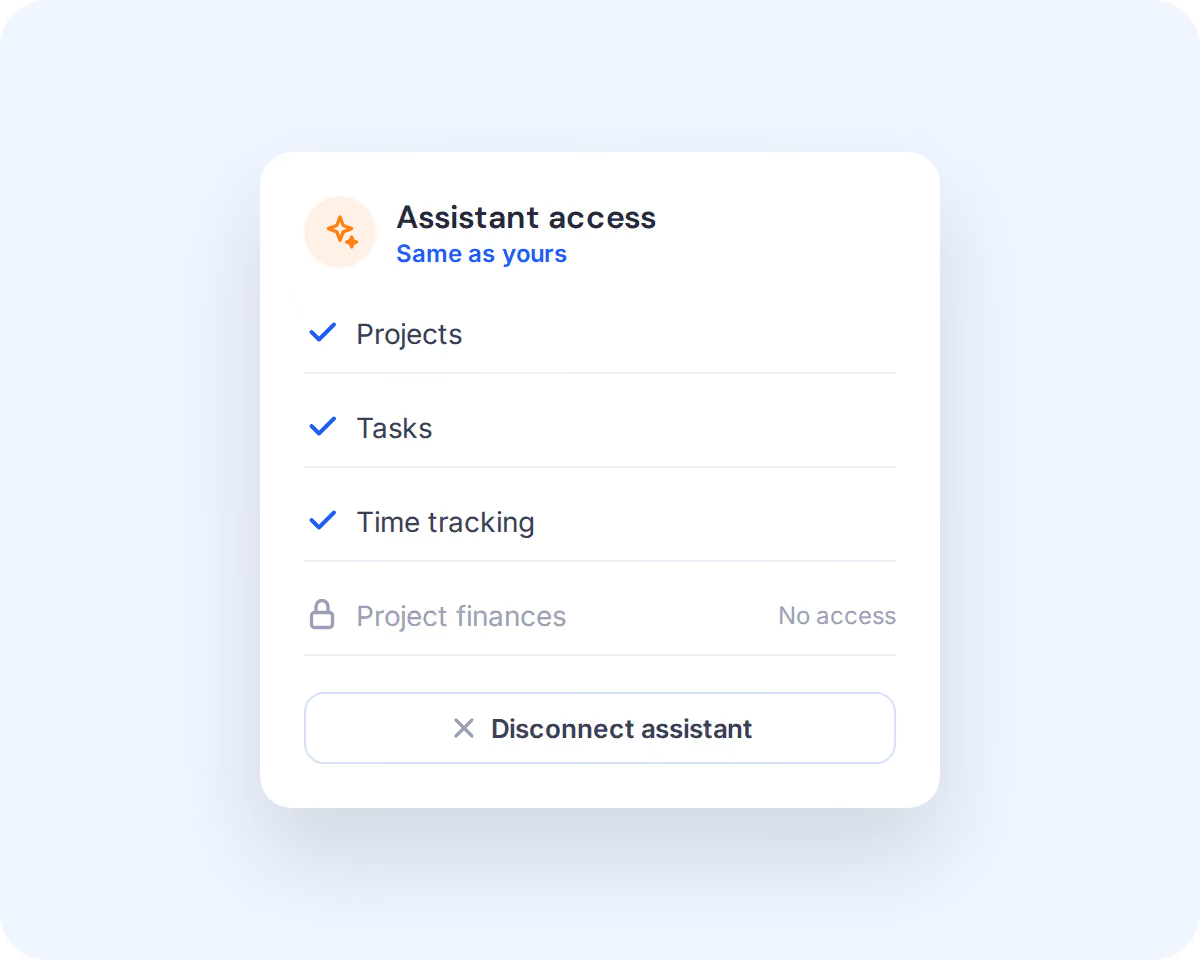
Your assistant sees only what you see
You confirm access on the IC Project sign-in page, so you never give your password to the assistant. The assistant works within your account and your project roles. If you can’t see a project’s finances, neither can it.
When signing in, you choose the company the assistant should work with.
Your permissions
The assistant has exactly the same access as you
Disconnect anytime
Just remove the server in your assistant’s settings

We analyzed the offers of various suppliers: global moguls as project management programs, as well as smaller companies. In IC Project we are fully functional and open to the customer.

See how much work you can hand off with a simple conversation

Create a free account and test with no obligation

Book a free online presentation
Do you have more questions?
Our team is ready to help you
It’s the official connector that links IC Project to Claude, ChatGPT, Microsoft Copilot and other AI tools using the open Model Context Protocol standard. With it, the AI model works directly on your projects, tasks, time logs, finances and calendar: it reads, analyzes and changes them.
Every IC Project user, with no extra setup on the system side. All you need is an IC Project account and an AI tool that lets you add your own MCP servers.
With any AI tool that supports remote MCP servers with sign-in, including Claude, ChatGPT, Microsoft Copilot, Gemini, Perplexity, Mistral Le Chat and Cursor.
Add a server with the address https://mcp.icproject.com/mcp in your AI tool, sign in with your IC Project account, choose your company and confirm access. You’ll find instructions for each tool in the app: Avatar → Integrations → MCP.
Yes! You can create automatic actions such as reminders, notifications or statuses that depend on the progress of tasks.
Full work management from your AI chat. Create projects, stages, boards and columns, create and edit tasks with checklists, comments and dependencies, assign people, log time, add costs, revenue and budgets, and add calendar events. The full list of operations is in the MCP server documentation.